
The Comm100 HubSpot Integration
See and Update HubSpot Contacts Without Leaving Comm100
Connect HubSpot to Comm100 so agents identify the right contact, view their CRM record, and update it during live chats and tickets, without switching between two systems.
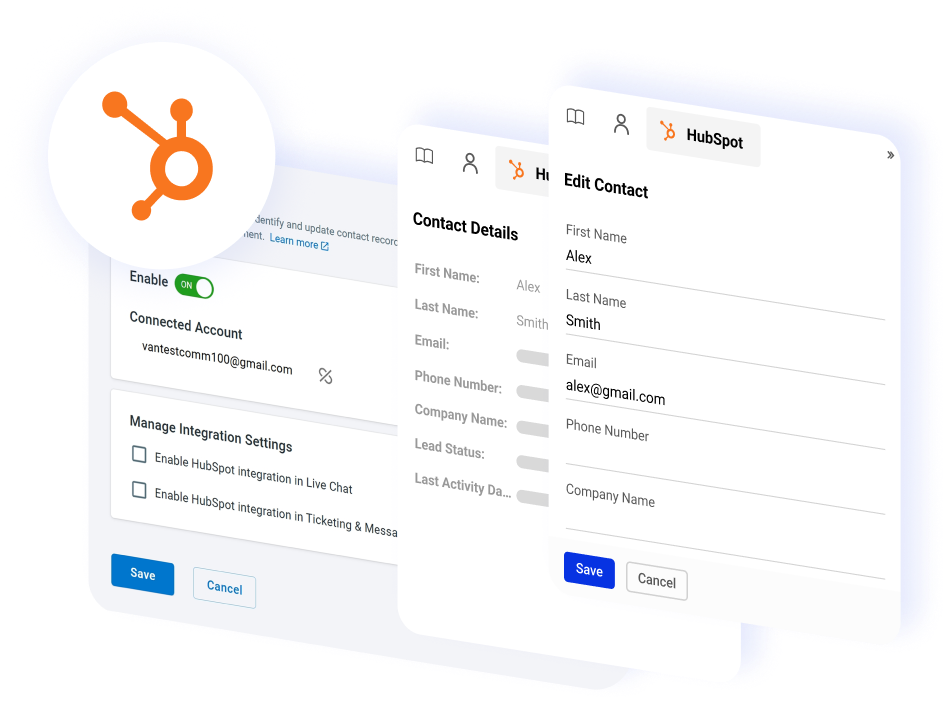




















See HubSpot Contact Records Inside the Agent Console
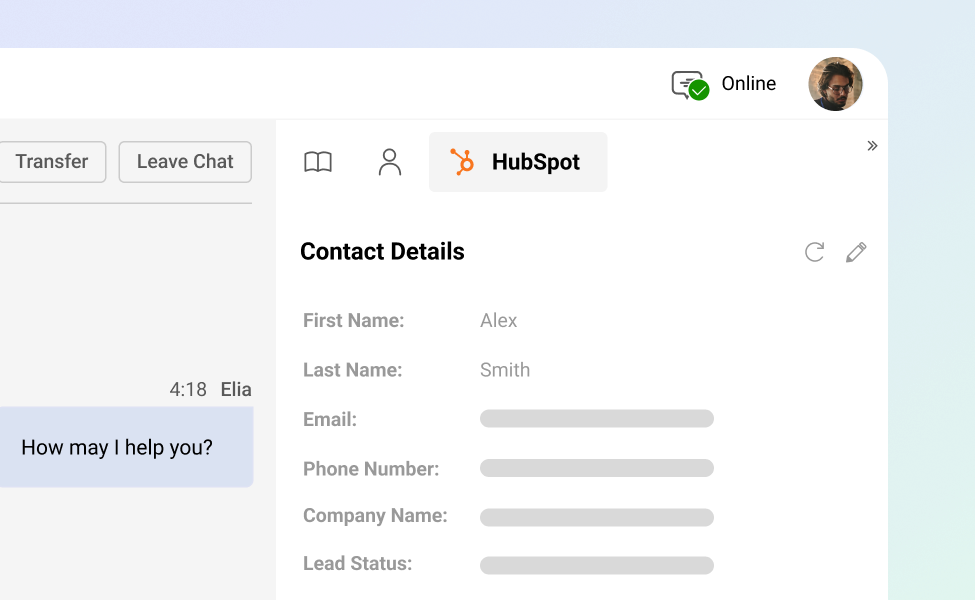
Once HubSpot is connected, a HubSpot tab appears in the Comm100 agent console under Live Chat and Ticketing & Messaging.
While agents work a conversation, the tab shows the customer’s information pulled from HubSpot, so they have the CRM record open next to the chat instead of in another browser window.
Update HubSpot Straight from the Conversation
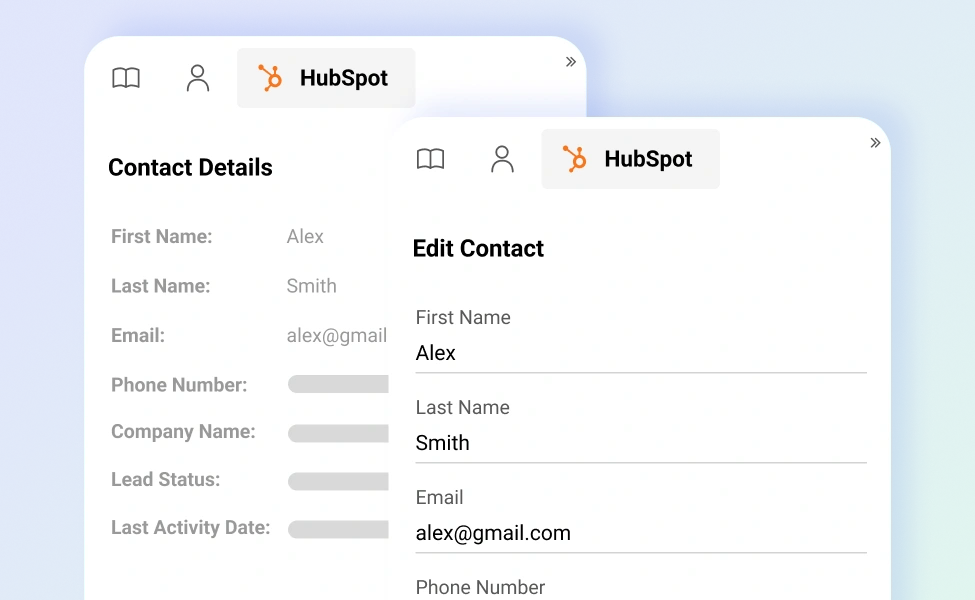
Edits agents make to contact details from the HubSpot tab sync back to HubSpot automatically, so your CRM stays current without separate data entry.
You can also save the chat transcript to the contact’s record as a note, which keeps the full conversation history in HubSpot for the next person who picks up the account.
Connect HubSpot in a Few Steps
Setup runs from the Comm100 control panel, with no developer work required:
- Connect your account: Go to Apps & Integrations, open the HubSpot card, and sign in to your HubSpot account to authorize the connection.
- Turn it on where you need it: Enable the integration for Live Chat, Ticketing & Messaging, or both.
Frequently Asked Questions
How does Comm100's HubSpot integration work?
Once connected, a HubSpot tab appears in the Comm100 agent console under Live Chat and Ticketing & Messaging. While an agent works a conversation, the tab shows the customer’s information from HubSpot, and any changes the agent makes sync back to HubSpot automatically.
What do I need to connect HubSpot to Comm100?
You need a HubSpot account and a Comm100 plan that includes the integration. From the Comm100 control panel, go to Apps & Integrations, open the HubSpot card, and sign in to your HubSpot account to authorize the connection. You then enable the integration for Live Chat, Ticketing & Messaging, or both.
Which Comm100 plans include the HubSpot integration?
The HubSpot integration is available on the Live Chat Ultra, Omnichannel Plus, and Omnichannel Ultra plans.
Can agents update HubSpot contact records during a chat?
Yes. Agents edit contact details from the HubSpot tab in the agent console, and those changes update in HubSpot automatically. You can also save the chat transcript to the contact’s record as a note, so the conversation history lives in your CRM.
Does the integration work for tickets as well as live chat?
Yes. You can enable HubSpot for Live Chat, for Ticketing & Messaging, or both. Agents see and update the same HubSpot contact information whether they are handling a live chat or working a ticket.
Experience the power of people-first, AI-powered customer service.
Get started today!